
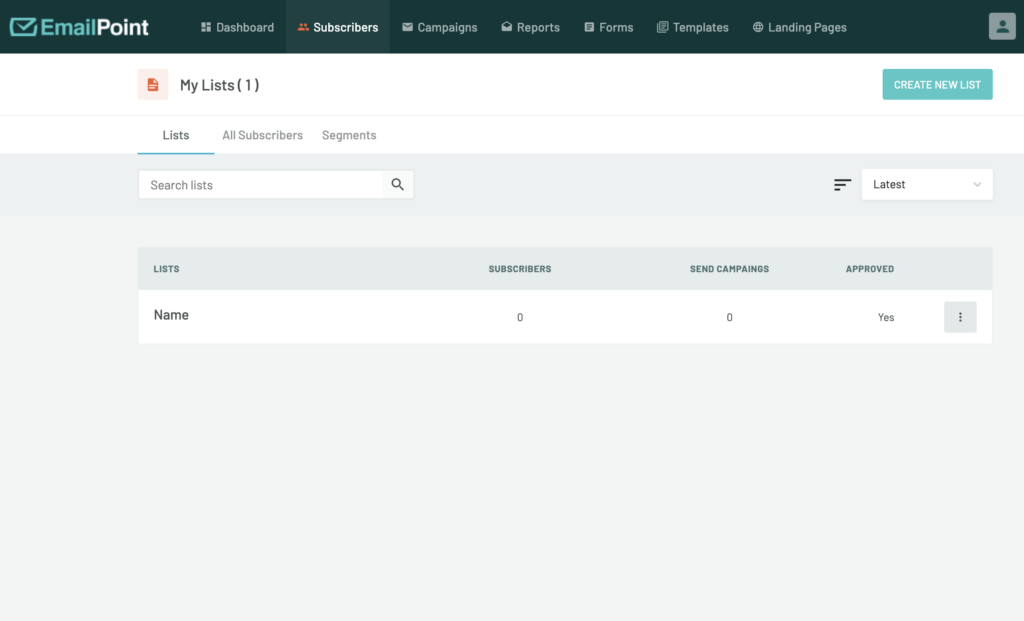
Step 1: Access the Subscriber List Section
- In the dashboard, go to Subscribers.
- Click Create New List
- Add a Name to your list
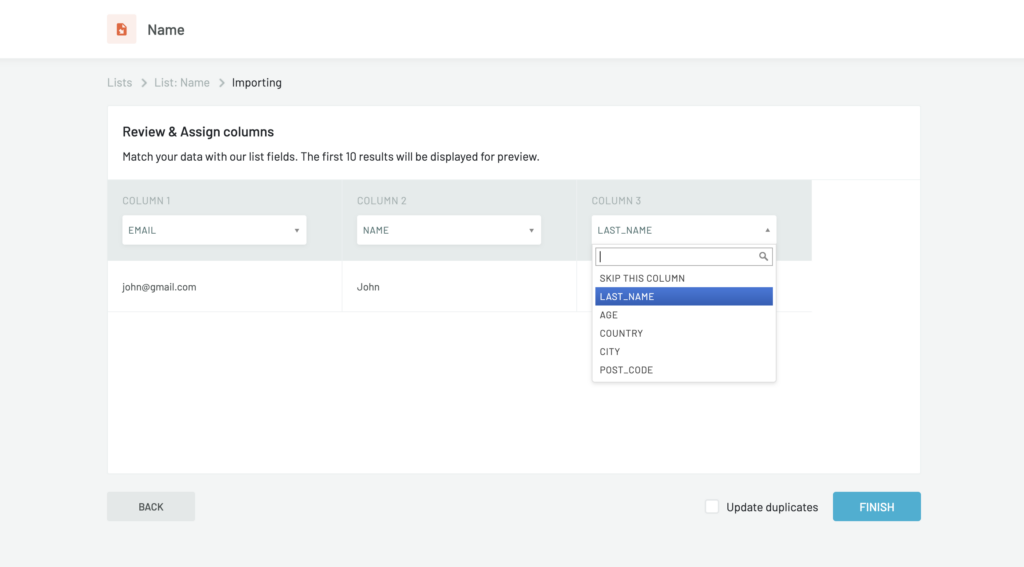
4. Import Subscribers. You can import them directly with a CSV or TXT file. Please note, that if the file is XLS, your list will not be uploaded. To finish uploading your file, click continue and then choose the custom fields in your file like in the screenshots. You can add user information like Email, Name, Last Name, Age, Country, City and Post Code. Then click Finish and your list will be uploaded.
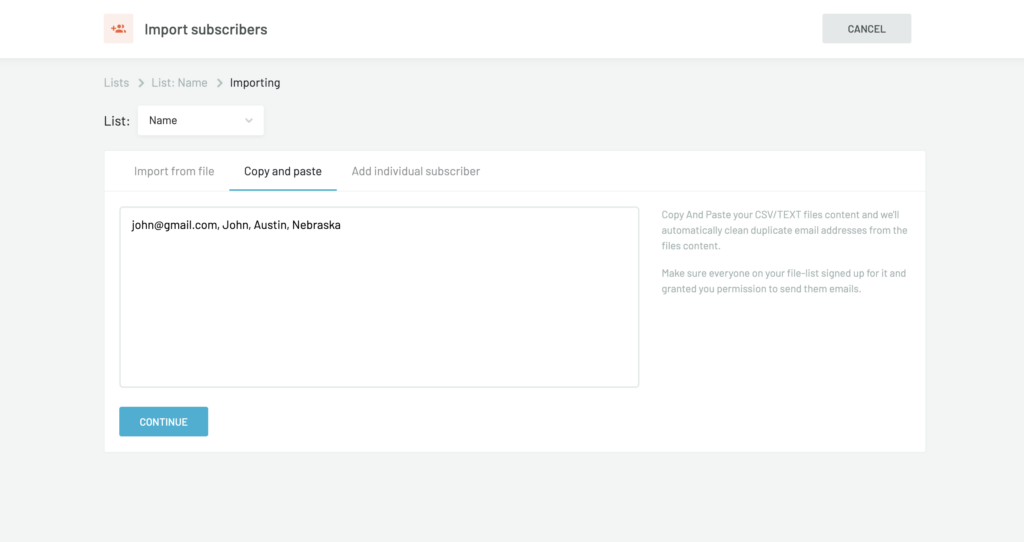
Another way to upload contacts is just by copy and paste of the emails and names by separating them with a comma. You can also Add an individual subscriber manually by entering Email and Name of the user.
Step 2: Segment Your List
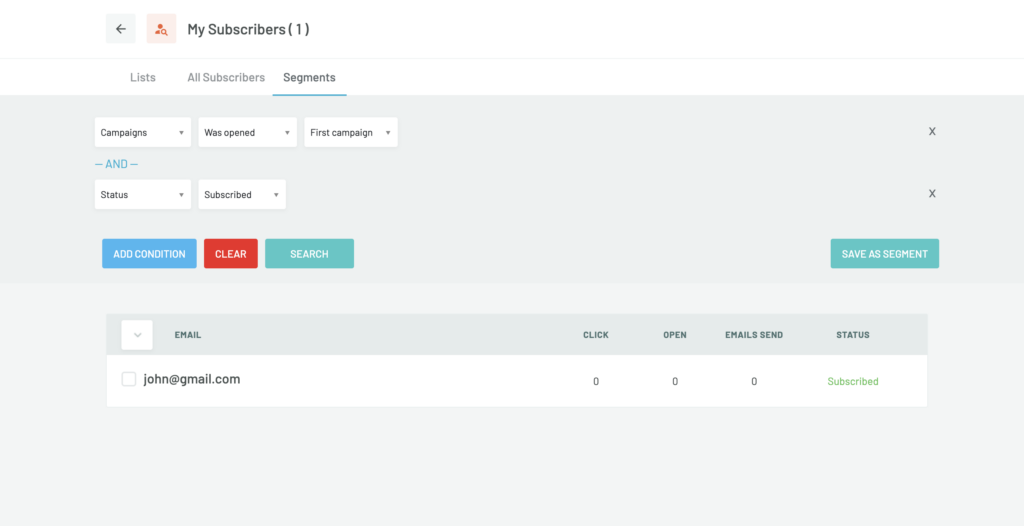
You can use segments to create custom audiences for example of your most engaged users, for users that are subscribed, that have opened specific emails and etc.
- Click on Segments from the header menu
- Define segmentation criteria, such as Custom Fields, Source, Status, Campaigns, or Messages.
- Combine multiple criteria to create advanced segments.
- Save the segment.
Step 3: Use Segments in Campaigns
- When setting up your campaign, select the segment you want to target.
- Combine segments with tags for precise audience targeting.
If you need any assistance or have additional questions, don’t hesitate to contact our customer service team at office@emailpoint.net.